
Work events · QR code guest book
Corporate event photo sharing with one QR code, no app
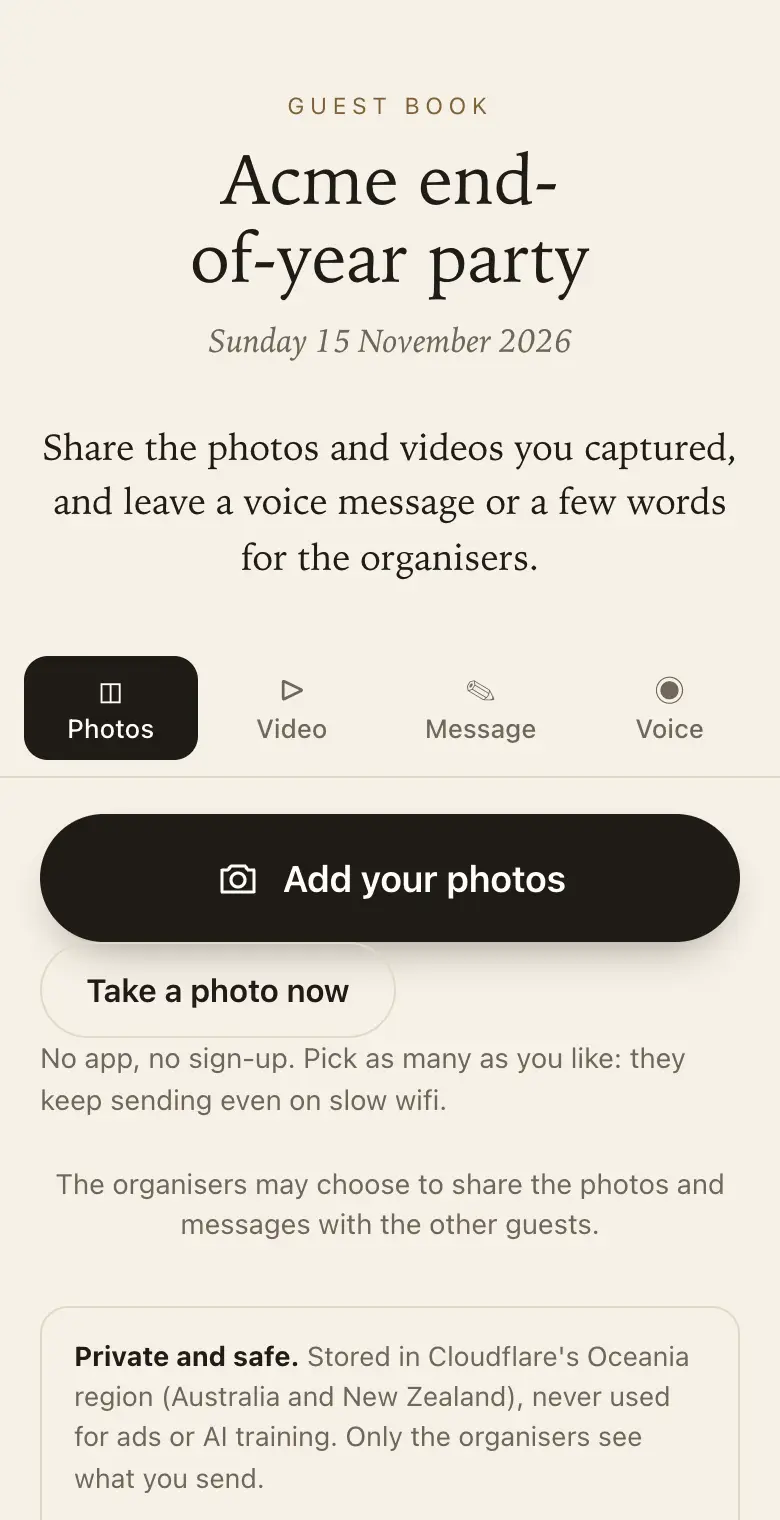
After a staff party or a conference the photos sit on fifty phones. One QR code gathers them without anyone installing an app, joining a chat or sharing a personal number.
- Free trial, no card
- Your QR code straight away
- No password
How do you collect photos from attendees at a corporate event?
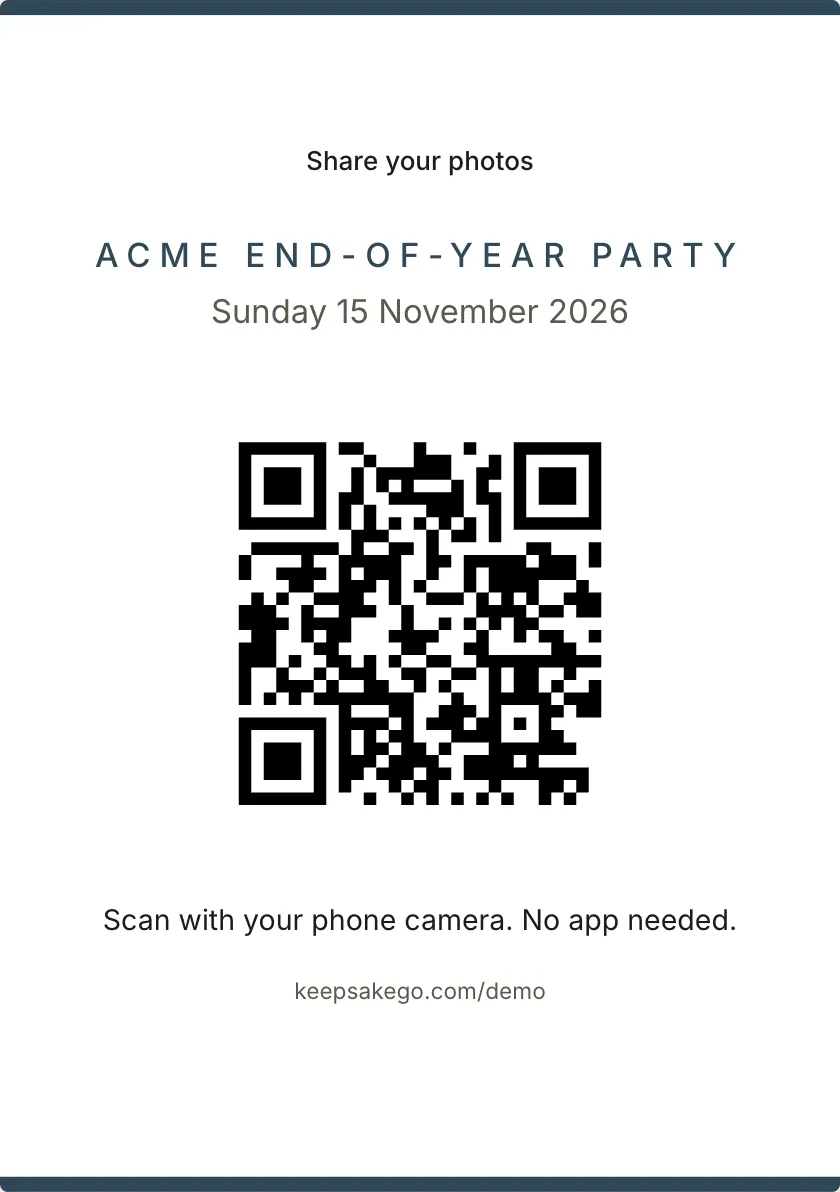
Display a QR code on screens, lanyards, tables or the menu. Attendees scan it with their phone camera and upload their photos and short videos in the browser, with no app or account. Organisers review them, can approve each one before it is shown, and download everything at the end.
Built for organisers
- Approve before others see: check each photo before it reaches the shared view or the slideshow.
- On the big screen: run the slideshow on a projector during the event.
- A co-organiser: invite one colleague to manage it with you.
- One download: every full-size photo and video for the newsletter, the intranet or next year's invitation.
Farewells and retirements
Colleagues in other offices can leave a message or a voice note by link, and the keepsake PDF becomes the farewell card.
Private by default
Attendees see only what they sent unless you share it. The QR code carries a secret key, and you can add a passcode. Files are stored with Cloudflare in its Oceania location (Australia and New Zealand) and are never used for advertising or to train AI.
Sign wording for a work event
- Opening slide Share your photos from today. Scan with your phone camera: no app, no sign-up.
- Christmas party table card Took a good one tonight? Scan to send it to the events team. Photos are checked before they're shown.
- Back of a conference lanyard Scan to add your photos to the official event album.
Prompts attendees answer well at a work event
Organisers can set up to five prompts, shown to attendees as they write.
- Conference: "The most useful thing you heard today?"
- End of year: "A colleague who deserves a thank-you this year?"
- Feedback: "One idea for next year's event?"
- Farewell: "A favourite memory of working with Sarah?"
How it runs at a work event
- Before: put the QR code in the run sheet so the MC knows when to mention it, and scan it from the venue screen during the tech check.
- On the screen: show the code on the first and last slide. As a rule of thumb, a phone reads a code from about ten times its width, so a code 30 cm wide on screen reads from about 3 metres.
- During: turn on approve first and have one organiser review new photos in the Keepsake iPhone app, which notifies them as photos arrive.
- After: download every original for the recap, hide anything you'd rather not circulate, then share photos with all attendees.
Which plan for a work event
A team lunch or a small farewell with mostly photos and messages can often run on the free trial. Christmas parties, launches and conferences where people film usually suit Classic, which takes video and keeps sharing open for months. Signature suits a large conference or a multi-day event with lots of video, or an annual event where you'd like photos collected for a year. Classic and Signature have no limit on how many photos, videos and voice messages guests send, within 25 GB on Classic and 40 GB on Signature. When a guest book reaches its limit, guests can no longer add photos, videos or voice messages, and can still leave written messages.
Keeping staff photos private
At a staff party, the photos you want for the intranet sit beside ones nobody should see on Monday. By default each attendee sees only what they sent, so photos don't circulate between colleagues unless you choose to share them. Turn on approve first so nothing reaches the slideshow or the shared view before an organiser has looked at it. Add a passcode printed on the sign, which helps when the code appears on slides that might be photographed and posted. You can hide or permanently delete anything at any time.
Using event photos in marketing
Attendees send photos of other people, not just themselves. If some may end up in a newsletter, on social media or in next year's brochure, say so on the sign or the opening slide, and check the plan against your own privacy policy. Keep the originals from the download for the marketing team, and use the thank-you list, a spreadsheet of everyone who sent something, to credit or thank the people whose photos you use, once you have asked them.
How it works: three questions, then your QR code. Print a sign or send the link, and guests share from their phone. See how it works.
Price: free to try, then from A$79 once per event, including GST. Compare plans.
Read next: fixing a QR code that won't scan from a screen · running the photo slideshow on a venue screen · plans and GST-inclusive pricing for work events · questions organisers ask before an event
Questions
Can we show the QR code on the presentation screen?
Yes. Save the QR code image from your dashboard and put it on your opening and closing slides and leave it up during breaks. Size it for the back row: as a rule of thumb, a phone reads a code from about ten times its width. Test it from the far end of the room during the tech check, as screen glare can make a code harder to read.
Can we remove a photo during the event?
Yes. Organisers can hide or permanently delete any photo from the dashboard at any time. With approve first turned on, new photos wait for an organiser before they reach the slideshow or other attendees, which is the safer setting for a staff party.
Can we use one guest book for every event this year?
Each event is best as its own guest book, with its own date and QR code. The sharing period counts from the event date, so a separate guest book for each event keeps the photos apart and gives each one its full sharing period.
Will it work in a conference centre with poor reception?
Yes. Each photo is saved on the attendee's phone first and sent in the background, retrying if the signal drops. The page asks attendees to keep it open until their photos finish. If there's venue wifi, put the network name on the slide beside the code.
Can we see who contributed photos, to thank them?
Yes. Download the thank-you list: a spreadsheet of everyone who sent something, with how many photos and videos each person sent. Adding a name is optional for attendees, so ask on the sign if you want credit lines.
Can staff who weren't there see the photos afterwards?
Yes. Send them the read-only family link, which shows the guest book without letting anyone change it. It suits a team in another city who missed the Christmas party, or managers who want to see the event without being organisers.
Do attendees need an account?
No. They scan, choose their photos and send. Adding a name is optional.
How do we pay?
By card through Stripe, once per event, with GST included in the price. For anything your accounts team needs, email info@eclipsemedia.au.
Also made for
Create yours now
Free trial, no card · Your QR code straight away · No password · Pay only when you are ready