
Live photo slideshow
A live photo slideshow for events, built from guests' photos
Open the slideshow on a TV, projector or laptop. As guests scan the QR code and send their photos, new ones join the show, so the room sees the night unfold.
- Free trial, no card
- Your QR code straight away
- No password
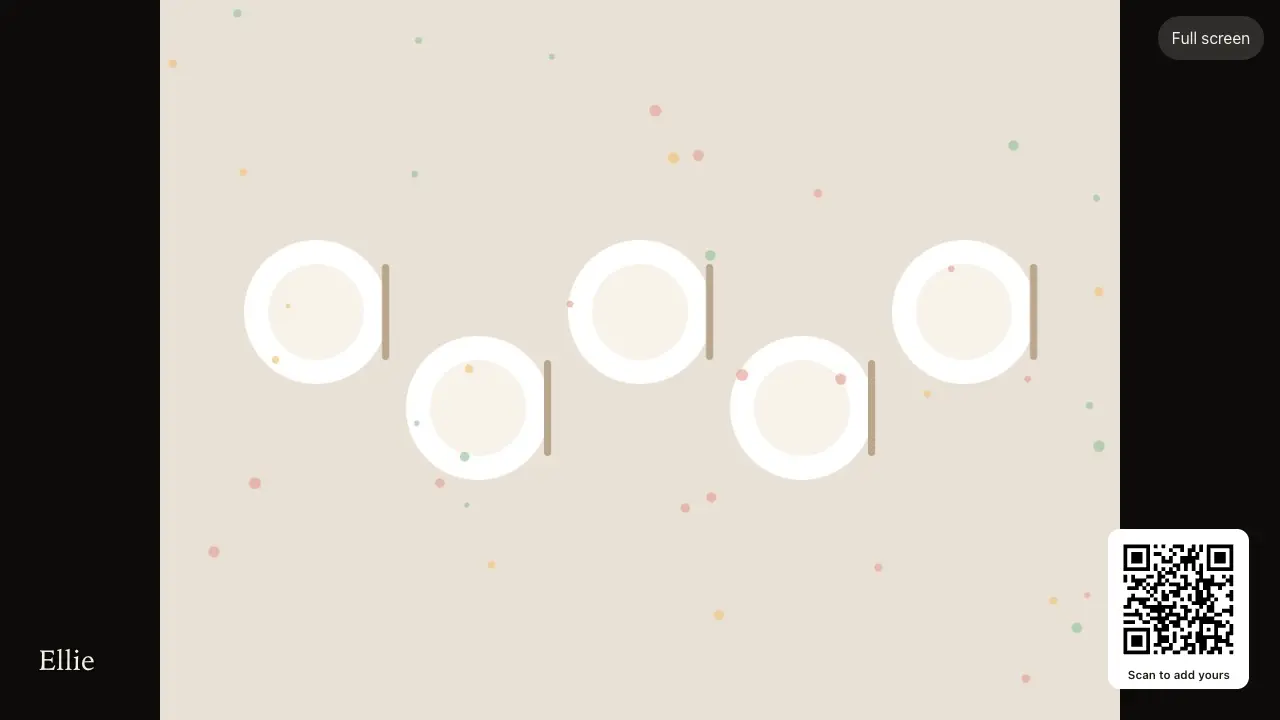
How do you show guests' photos live on a screen?
Guests upload photos by scanning a QR code with their phone. The host opens the slideshow page in the browser of a TV, projector or laptop; it plays the photos guests have sent and checks for new ones, adding them as they arrive.
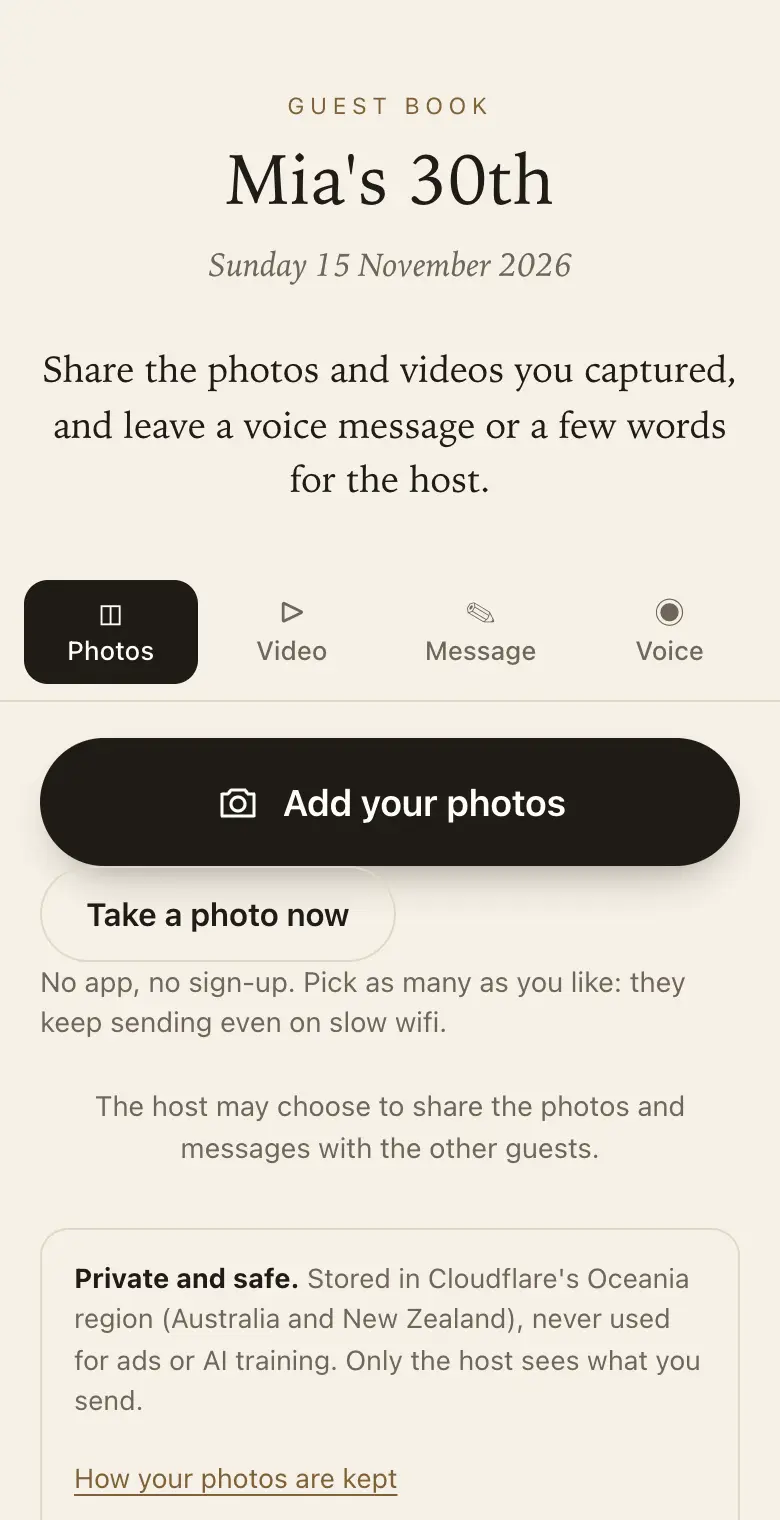
Setting it up
- Any screen with a browser: a smart TV, a laptop on a projector, or a venue screen.
- Keep control: turn on approval and photos wait for your OK before they are shared; hide anything with a tap.
- Part of every plan: the slideshow is included, the free trial too.
Setting it up on the venue screen
- A smart TV: open the slideshow page in the TV's web browser and make it full screen.
- A projector: connect a laptop by cable, open the slideshow in its browser and show it on the projector.
- Just a laptop: on a side table during pre-dinner drinks, the laptop's own screen is enough.
- Before the day: ask the venue whether their screen has a browser or takes a laptop, and try it with a few photos of your own.
A moderated screen with approve first
A big screen is public in a way a phone is not. Turn on approve first and new photos wait for you before they reach the slideshow or anyone else. The Keepsake iPhone app notifies you when new photos arrive, and your co-host can take a turn checking them so you can enjoy the night.
A wedding slideshow from guests' photos
A wedding slideshow usually means someone gathering photos for weeks beforehand. This one fills on the night: the ceremony shot a cousin took from the back row, the selfie at table six, the dance floor after the speeches. The photographer's edited set comes later; this is the evening as guests saw it.
Sign wording for the slideshow
- "Your photos, on the big screen": scan, pick a photo and look up.
- "Send us your photos tonight": they join the slideshow through the evening.
- Beside the screen: a table card with the QR code, so people who stop to watch can join in.
Which plan for a slideshow
The slideshow is part of every plan, the free trial included, so you can test it at home first. Classic and Signature have no limit on how many photos, videos and voice messages guests send, within 25 GB on Classic and 40 GB on Signature. When a guest book reaches its limit, guests can no longer add photos, videos or voice messages, and can still leave written messages. For a full wedding or party, choose Classic or Signature so new photos don't stop at the trial's limit partway through the night.
How it works: three questions, then your QR code. Print a sign or send the link, and guests share from their phone. See how it works.
Price: free to try, then from A$79 once per event, including GST. Compare plans.
Read next: running the slideshow on a venue TV · test the slideshow and QR code before the day · how many photos each plan takes · questions about screens, signal and approvals
Questions
Does the screen need its own internet connection?
Yes. The slideshow is a web page, so the TV or laptop showing it needs Wi-Fi or a cabled connection to pick up new photos. Guests' phones send photos over their own mobile data or the venue Wi-Fi, separately from the screen.
Can I start the slideshow before guests arrive?
Yes. Open it whenever you like; it shows the photos already sent and adds new ones as they arrive. Sending a few of your own beforehand means the screen is not blank when the first guests walk in.
What happens if no one is checking approvals?
Photos wait. With approve first on, nothing new reaches the slideshow until you or your co-host approve it, so the screen keeps playing what is already there. If nobody will have time, leave approve first off and hide anything unsuitable as you notice it.
Do I need a laptop at the venue?
Not always. A smart TV with a web browser can open the slideshow on its own. Some venue screens only take a cable input, and then a laptop connected to the screen is the simplest way. Ask the venue which they have.
Can I use the slideshow at a birthday or work event?
Yes. It works the same for any kind of event you choose at sign-up, from a baby shower to a company end-of-year party. The kind of event you choose changes the wording guests see on their page, not how the slideshow plays.
Who decides what goes on the screen?
You do. Only photos sent to your guest book appear on it. With approve first on, only the ones you have approved reach the screen, and you can hide or permanently delete any photo you would rather not show.
Does the slideshow need an app?
No. It is a web page; open it full screen in the browser on the device connected to the screen.
Also made for
Create yours now
Free trial, no card · Your QR code straight away · No password · Pay only when you are ready